

Get To Know Your Alpha 7R VI
Make the Alpha 7R VI feel like an extension of the way you shoot.
- Details
- Module
- Quiz
About this course
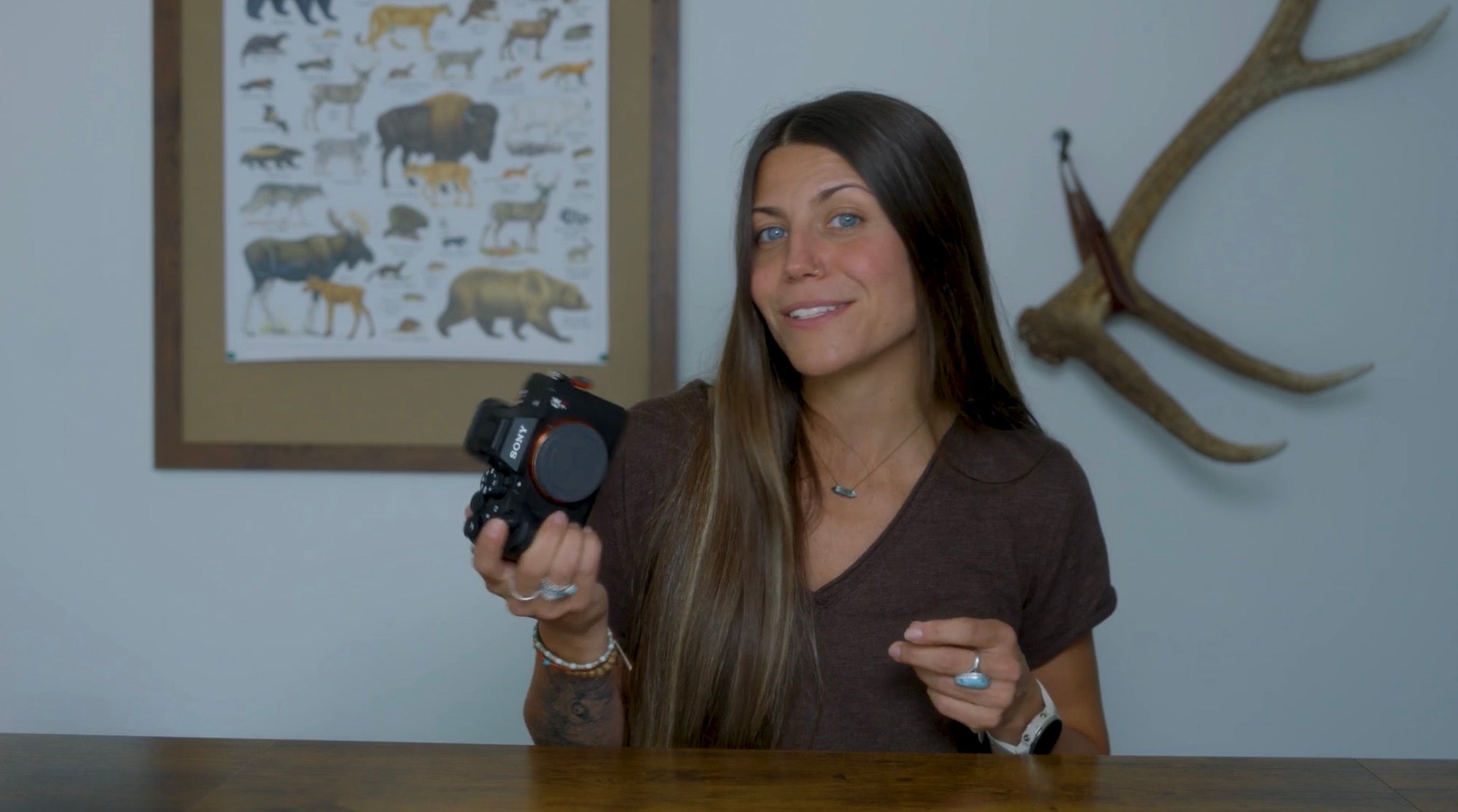
The Alpha 7R VI is built for a wide range of creative work – but the real advantage comes from configuring it around your own workflow. In this course, Sony Alpha ambassador Hannah Rheaume walks through the camera’s essential controls, high-resolution sensor, autofocus system, burst shooting, Pre-Capture, file management and customization options.
Course highlights
Featured gear
Instructor
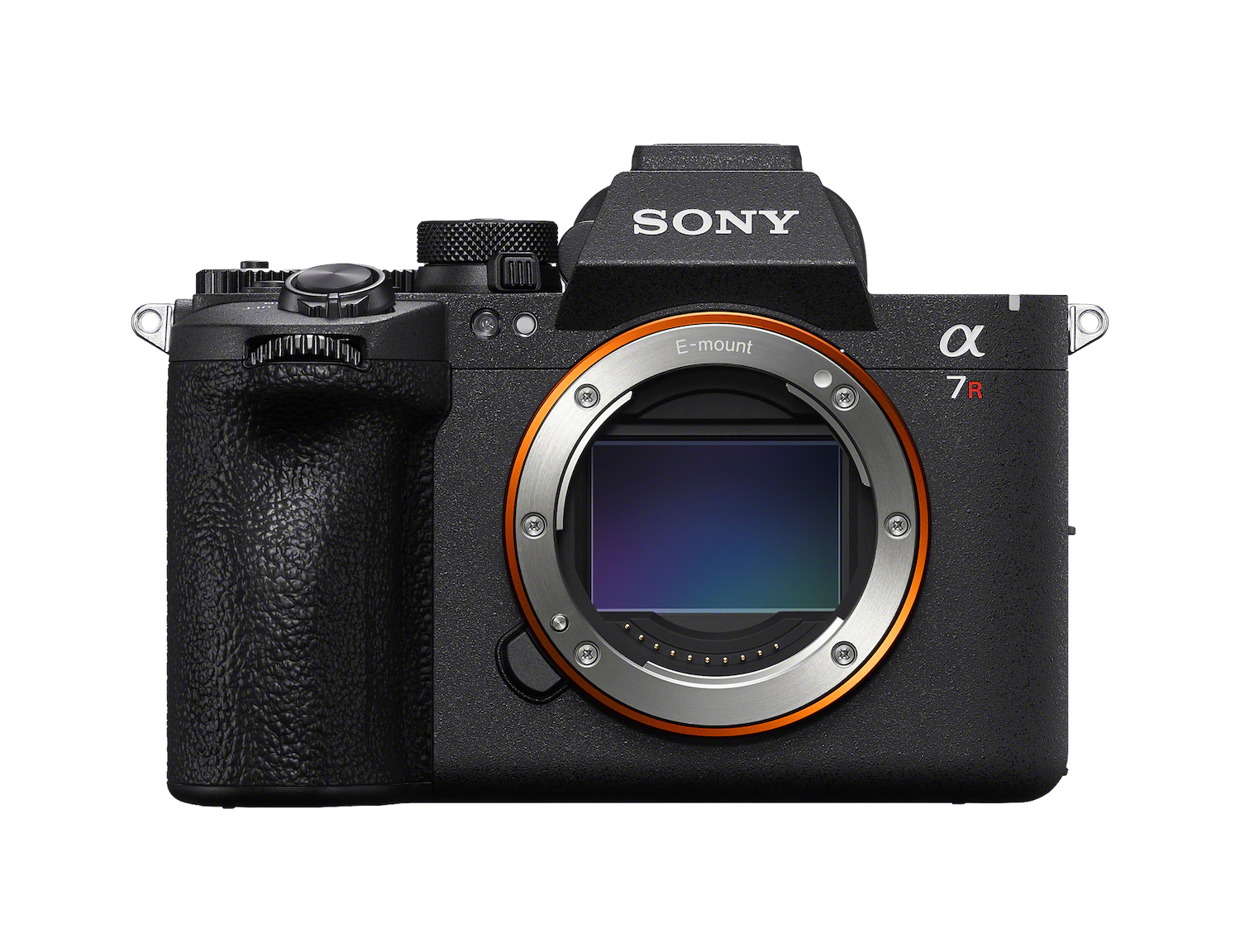
Hannah Rheaume is a passionate photographer and storyteller drawn to the beauty of nature, wildlife and the allure of far-off destinations. Hannah is also a member of the Sony Alpha Imaging Collective. Through her work, she explores the relationship between people, land and wildlife to spark curiosity, compassion and inspire a deeper sense of responsibility for the natural world around us.

Hannah Rheaume
Photographer, Storyteller, Alpha Imaging Collective
Skills
Transcripts
- Hey there. My name is Hannah Rheaume and I'm a wildlife and nature photographer and also a Sony Alpha ambassador. And welcome to the A7R VI course at Alpha Camera Academy. In this course, we'll go beyond simply explaining the camera's features and we'll look at its key controls and upgrades, how to get the most out of autofocus and image quality, and build a workflow that fits the way you actually shoot. All right, let's get started.
- So the A7R VI is capable of handling a wide range of professional applications, but its default configuration isn't necessarily optimized for the way that you shoot. When you're working quickly, you don't want to think about where a setting is buried in the menu or remember which button controls a function. You want the camera to respond the way you expect every single time. So let's start with your workflow.
Before changing anything on your camera, you should think about the work that you actually do. Your camera setup should be dictated by your shooting environment, not by someone else's preferred configurations like my own. The important thing is to configure it intentionally. So let's talk memory cards.
The A7R VI has two memory card slots supporting CFexpress Type A and SD memory cards. For professional work, how you configure these slots should be a part of your file management strategy. You can configure the camera to record across both cards, use one card as a backup or separate different types of media depending on your workflow.
Now let's take a look at the controls you'll interact with most often. At the top, the mode dial gives you access to manual, shutter priority, aperture priority and program auto and regular auto, along with your customizable shooting configurations. For your professional work, you're likely going to spend most of your time in manual or one of the priority modes depending on the assignment. On this dial, you'll also notice the customizable shooting configurations. These allow you to save groups of settings that you can recall quickly.
A custom configuration can become an entire shooting setup, autofocus behavior, drive mode, file type, exposure settings, and other parameters that you frequently use together. This is particularly useful when you're moving between different types of shooting during the same assignment. So instead of changing 10 individual settings, you can build a configuration around the way you work and recall it when you need it. We'll dive into my setup a little bit deeper later, but really quick, the front dial controls aperture, the rear dial control shutter speed, and the right side dial controls my ISO. Spend some time developing muscle memory here. You should eventually be able to change aperture, shutter speed and ISO almost entirely by feel.
Next up are your customizable buttons, C1, C2, and C3. This is where you turn the A7R VI into your camera. My biggest recommendation is assigning actions to these buttons that solve a problem in your workflow. For example, if you're constantly switching your autofocus behavior, subject recognition, drive modes, or another frequently used function, giving that setting a dedicated control can eliminate unnecessary menu navigation.
Sticking to the top of the A7R VI, you'll see the dedicated illumination button. This is a small feature, but it's one I appreciate when I'm working in extremely low light environments. It illuminates the rear control so you can see what you're doing without introducing unnecessary light into the scene. For example, when I'm shooting the northern lights, I may be operating the camera in near darkness. And I was doing this when I was up in Churchill. So being able to quickly identify the physical controls without pulling out a phone or a flashlight keeps the process much cleaner.
The A7R VI gives you two primary ways to compose images, the articulating rear LCD screen and the Electronic Viewfinder. For professional shooting, think of these as two different tools rather than two different screens. The LCD screen is particularly useful when your camera position doesn't match your eye position. So that's low angles, overhead compositions, tripod work, or situations where you're physically separated from the camera.
The A7R VI LCD screen is also a touch screen, so this gives you another layer of control. I generally think of it as another tool rather than a replacement for the physical controls. When you're working quickly, use whichever interface allows you to make the adjustment with the least interruption to your shooting. You can toggle the touch screen on and off with the trash can icon. And when you have that viewfinder or LCD screen up and you're making your images, the shooting display can contain a tremendous amount of information and you don't need to be aware of all of it. Instead, you can kind of develop this quick visual scan that gives you the information you need before and during a shoot.
- Now, let's take a look at our menu strategy. The A7R VI has an extensive menu system with so many different features and things you can customize. There will be settings you change constantly, settings you change occasionally, and settings you may configure once and never touch them again.
Let's chat about the FN menu. This menu is one of the most useful ways to customize your shooting interface on the A7R VI. Treat it as a dashboard for settings you want immediate access to. Look at what's currently assigned and ask yourself, "Are these the settings I actually change often?" If not, change them. Your FN menu should reflect your workflow, and the ideal setup allows you to make the majority of your common adjustments without ever entering the main menu.
The ultimate goal of camera configuration isn't convenience, it's speed and consistency. When you're working professionally, the camera should become almost invisible. The more familiar the physical interface becomes, the less attention you'll spend operating the camera. That leaves more attention available for the things that actually matter, your subject, your light, your composition, and the moment that's unfolding before you.
Before heading out on assignment, I recommend developing a consistent camera check. I do this before I head out to shoot every time, and the A7R VI has never let me down when I set up systems like this. The more intentional you are about this setup, the less you'll have to think about the camera when you're actually working. In the next module, we'll take a look at the core photography features and what makes the A7R VI stand out.
- Now that we've gotten to know our way around the camera a little bit, let's look at the A7R VI's core photography features and what makes it different.
I shot on the A7R V since it was released in 2022. That camera became a true extension of me, so much so that I never needed to think when it came to changing the settings while shooting. And with the A7R VI, it's virtually the same thing, but this camera is jam packed with a bunch of upgrades that I am so excited about.
One of the defining characteristics of the A7R VI is its high-resolution sensor, but what does that actually mean in practice? It means that the camera captures a tremendous amount of detail, which is valuable for just about every type of photography - landscapes, architecture, commercial photography, portraits, wildlife, and situations where you need to make very large prints or crop into an image later.
The raw images out of the A7R VI are 66.8 megapixels, which gives you a lot of flexibility when it comes to reframing in post. It also shoots 30 frames per second blackout free, which means the camera can shoot continuously at 30 frames per second while keeping the electronic viewfinder or screen showing the scene smoothly without going black in between shots. Simply put, you can follow a moving subject in real time while shooting at 30 frames per second, making it much easier to track action and keep your subject in frame.
So let's demonstrate one of the practical advantages of having all of that resolution. I was recently photographing a raven and I've had a particular image in mind for a very long time. I have always wanted to photograph a raven's eye. In order to ethically photograph animals, I always want to remain a respectful distance away, so I often opt for a long lens. So I captured this image with the new Sony 600mm f/6.3 G Master lens. And as you can see, the original is quite wide and it's not quite isolating the eye like I wanted.
But because the original image contains so much information within those 66.8 megapixels, there's a lot of flexibility to crop while still retaining the detail in sharpness. So while I captured the original image much wider, I have so much more range and ability to crop with all of that data in the RAW image. Now, this doesn't mean cropping can replace good composition or the right lens, but it does give you another level of flexibility, especially when you're working quickly or can't physically move closer to your subject.
- Let's chat about the autofocus system in the A7R VI.
Autofocus is one of the most important tools that I have access to. It's not just about getting a subject sharp, it's about giving you the freedom to focus on composition, timing, and capturing the moment while the camera handles the job of keeping your subject sharp and in focus. And the key is understanding which autofocus mode and focus area best fit the situation.
AF-S or Single Shot AutoFocus is best for subjects that aren't moving. The camera focuses once and holds that focus. This is great for portraits, landscapes, commercial work, or any other stationary subject. AF-C or Continuous AutoFocus is designed for moving subjects. This is the autofocus system I use the most. The camera continuously adjusts focus as your subject moves, making it ideal for sports, wildlife, or other dynamic situations. And choosing your focus area matters as well.
And the A7R VI gives you a number of different ways to tell the camera where to look. You can use a smaller, more precise area when you know exactly what you want to focus on or a broader area when you want the camera to have more freedom. Options range from a small center point focus to an extra small to extra large area and even a wide focus area.
Next up, the A7R VI's advanced subject recognition can identify a wide range of subjects, including people, animals, birds, insects, vehicles, trains and airplanes. I love how you can specify and narrow down your subject selection on this camera. For people, the Eye-AutoFocus helps prioritize the subject's eye rather than focusing on whatever is closest to the camera. And with Real-Time Tracking, you can select your subject and let the camera track it as it moves to the frame. For fast-moving subjects, this can be a game changer.
Another tool in the toolbox of the A7R VI is burst shooting. For moving subjects, the burst shooting is extremely useful. Instead of taking one photograph at a time, you can capture a sequence of images while the action is happening. As I mentioned, up to 30 frames per second. And with that, it's virtually impossible to miss the action. Again, this is useful for wildlife events or any situation where the exact moment is unpredictable.
When I photograph wildlife, I am almost always shooting in Hi+. This is the fastest the A7R VI shoots images. So when there's a lot of action, dynamic movement or interesting displays of behavior, it's Hi+ for me all the way. If my subject isn't moving much or there's not a lot of behavior going on, I will bump it down to a slower burst rate.
One of my favorite features in the A7R VI is Pre-Capture. I am so excited to have access to this in this camera now. Pre-Capture allows the camera to buffer images before the shutter is fully pressed and it doesn't save to the memory card until you press the shutter. Once you press the shutter, it shaves the Pre-Capture images from up to one second prior. So in practice, you point the camera at your subject, you half press the shutter, the camera begins retaining images in the buffer, something happens, say a bird suddenly takes off, you finally press the shutter and the A7R VI saves those images from immediately before when you pressed the shutter, plus the subsequent burst. When I use Pre-Capture, it's usually for capturing an animal's behavior or a bird taking off from its perch. And that's an image I have classically missed every single time before having access to Pre-Capture in the A7R VI.
So a few things to remember when using this new Pre-Capture feature on the A7R VI, I make sure that my Drive Mode is set to Continuous Shooting. I make sure that the Electronic Shutter is on as it's required to use Pre-Capture. I turn on Pre-Capture in my FN menu. I set my Pre-Capture time to one second and I select the appropriate Subject Recognition. One thing to watch is that Pre-Capture uses the camera's buffer and card writing capacity. If the buffer is already occupied or the camera is getting hot, the available Pre-Capture shooting time or shooting speed can be reduced, which is why it's important to use a card that can handle the capacity that Pre-Capture requires.
Next up, image stabilization. The A7R VI can compensate for certain types of camera movement, which helps you produce sharper images when shooting handhelds, which I do a lot of. This becomes particularly useful in lower light situations where you might want to use a slower shutter speed.
Now that we've covered all of that, let's put everything together in the field.
Imagine you're photographing a person or an animal like my dog walking through an outdoor scene. First, we'll set our camera to AF-C, or AutoFocus Continuous, because our subject is moving. We'll choose an appropriate Focus Area, enable Subject Recognition with Eye-AutoFocus, and then select our subject and engage tracking.
Next, we'll set our exposure. So we'll choose an aperture that gives us the depth of field we want. Let's say f/4 to create some separation between our subject and the background. Then we'll set a shutter speed fast enough to freeze a subject's movement somewhere around 1/800 to 1/1000-sec. is a good starting point for a moving subject, but you may want to bump it up depending on your subject's speed. From there, we'll adjust ISO as needed to achieve the exposure we want, and we'll also use Hi+ Continuous Shooting to capture a burst of images as our subject approaches, giving us more opportunities to capture the perfect moment.
Now, all of these settings are working together. Autofocus is tracking our subject, shutter speed is controlling the motion, aperture is shaping our depth of field, and ISO is helping us maintain the right exposure. And once we've captured our sequence, we can review the images, find the strongest frame and rate it or protect it so that it's easier to find later.
Finally, thanks to the camera's high resolution, we also have additional flexibility to crop or reframe the image in post-production without sacrificing any detail. And that's how we bring all of these settings together to get the perfect shot.
- The A7R VI has an enormous amount of features, but you don't want to be searching through menus every time you need to change a setting. So the idea behind customization is to put the controls that you use most often exactly where you can reach them quickly.
So let's start with the custom buttons and control dials. The A7R VI gives you several buttons that can be assigned to different functions. To customize them, you press the menu and go down to the yellow briefcase menu option. Select 3, or Operation Customize. From there, you can choose a button and assign the function you want.
Before you start assigning everything, think about your shooting style. If you photograph people, you might want quick access to autofocus area settings, subject recognition, or eye detection related functions. If you're shooting landscapes, you may want to prioritize ISO, white balance or other exposure controls. And if you're shooting sports or wildlife, your drive mode and autofocus settings may be much more important. There is no single correct setup, but a good starting point is to keep your most important functions on controls that you can reach without taking your eye away from the viewfinder.
In this menu option, you can also customize the control dials. The dials give you quick control over settings such as shutter speed, aperture, or exposure compensation, depending on your shooting mode and configuration. If you constantly find yourself reaching into the menu to change a setting, that's a pretty good candidate for a custom button or dial.
Next, let's customize the FN menu. This is the menu I use the most in this camera. I mentioned this before, but the FN menu is one of the most useful shortcuts on it. And it's because it puts a group of frequently used settings in one place in one button. Other than the shutter button, this is where I spend most of my time when I'm shooting. Simply press the FN button while you're in the shooting screen and you'll see your current shortcuts. You can customize these positions to match the way you work.
Here's a simple way to approach it. Play the settings you frequently change while you're actively shooting into the FN menu. For example, mine include Drive Mode, Focus Area, Metering Mode, White Balance, Subject Recognition, Shutter Type and Pre-Capture. If you're unsure of how to fill this menu up, don't worry, just add your most use settings with where you're at now. And as you continue shooting with the A7R VI, you'll figure out what else you want to add to it. Think of it as your camera's quick control dashboard.
Now let's talk about another menu, My Menu. The main menu is where you'll find virtually every setting on the camera. That is powerful, but it also means that some settings can take a little time to find. Honestly, I'm still navigating this menu even though I've been shooting with this camera for such a long time. And the My Menu solves this problem by allowing me to create my own collection of frequently accessed menu items.
And the key here is to just keep it simple. Don't think of my menu as a place to put everything. Instead, use it for the settings you occasionally need, but don't want to hunt for. For example, my own My Menu has Format, Drive Mode Settings, Pre-Capture and Dual Gain Shooting, but you can add other menu options that you regularly need access to.
The final part of this module is the touchscreen. The touchscreen isn't just there for navigating menus or reviewing your photographs. You can also use it to control autofocus with touch focus. This is especially helpful if you're shooting in odd angles, whether it's low or overhead and you're using your articulating LCD screen to pull focus. As a reminder, the purpose of customization isn't to make your camera more complicated, it's actually the opposite. You want to remove the unnecessary steps between seeing a photograph and capturing a photograph. Don't worry about creating the perfect setup immediately.
Honestly, it's taken me years to be able to do this. So just take the camera out for a few practice shoots and notice where you're finding yourself going into the menu repeatedly. Those are the first things you should opt to customize. Over time, your A7R VI should begin to feel less like a complicated piece of technology and more like an extension of the way that you shoot.
- Up to this point, we've focused primarily on still photography, but one of the really important things to understand about the Sony A7R VI is that the combination of its high resolution, fully stacked sensor, fast processing, auto-focus capabilities, stabilization, and extensive recording options, makes video a major part of what this camera can do.
So, let's start with the basics. Switching between still photography and video. The top dial of this camera allows you to move between stills and movie shooting modes while maintaining settings appropriate to each type of work. That's important because the settings you want for a photograph aren't necessarily the settings you want to record video. When shooting stills, you might be thinking primarily about shutter speed, aperture, and ISO, but with video, you're also thinking about frame rate, recording format, audio, stabilization, and how the footage will actually be edited later.
So before you hit record, get into the habit of checking that you're in video mode and that your recording settings are what you want them to be. The camera also has an S&Q or Slow and Quick option. S&Q allows you to capture footage at different frame rates and creates slow motion video. You can use higher frame rates, such as 60 or 120 frames per second, when you want to create slow motion footage.
The main difference is that standard video recording is designed for normal playbacks, say 24 frames per second, while S&Q is specifically designed to create slow motion or high speed video. Now let's talk about resolution and your frame rate. Frame rate determines how many frames are captured in every second. So for normal looking cinematic motion, I recommend 24 frames per second. For slow motion, you'll generally capture at a higher frame rate. So I opt for 60 most often, although 120 is another option when you want even more of a dramatic slow motion effect.
So when choosing frame rate, think about the final result that you want. You use a standard frame rate for normal motion and a higher frame rate when you want to slow down motion. The A7R VI can record 8K video at up to 30 frames per second as well as 4K up to 120 frames per second. But it's important to note that there is a slight 1.2 time sensor crop when shooting in these modes. 8K gives you an enormous amount of detail and importantly gives you additional flexibility when you're delivering in lower resolution format.
For example, if your final video is 4K and 8K source can give you room for cropping or reframing in post-production. The trade off is that 8K files are larger, storage requirements increase and your editing system has to work a little bit harder. For most everyday video and much of what I do, 4K is absolutely perfect. The Sony A7R VI outputs 16 bit RAW at up to approximately 4.6K resolution and 60 frames per second through HDMI. That can be valuable when filming a variety of subjects and it's particularly useful when you want the most flexibility for color grading if you're shooting in challenging lighting or you're creating footage for a more cinematic final product. But it isn't necessary for every situation. If you're shooting casual footage or want quick turnaround, the A7R VI can deliver excellent results with a much simpler workflow.
The A7R VI requires a compatible external recorder connected through HDMI to capture this RAW video. The recorder stores the footage in a supported format such as ProRes RAW rather than recording RAW directly to the camera's cards. That means extra equipment, additional batteries, more storage space and a compatible editing workflow. Raw footage can also require more time in post-production because you have greater control over how the image is processed. Here's how I look at it. Raw makes sense when image flexibility is a priority or if you need to zoom in or reframe the final product. If you need speed and convenience, recording internally in a high quality format as I explained previously may be the better choice.
Now let's look at the recording format. The A7R VI supports formats including XAVC S and XAVC HS with 10-bit options and different compression choices. When choosing a format, you're balancing image quality, file size, storage and your editing workflow. For a footage that I'm going to edit and color correct, 10-bit 4:2:2 is a strong choice. It provides richer gradation and retains more color information which gives you more flexibility when color grading. The trade off though is larger files, so to keep your storage requirements and editing system in mind when choosing your recording format.
Now let's talk about something that's just as important as image quality sound. The camera has a microphone built in and it has a microphone input and headphone output. So you can connect an external microphone or use the internal microphone and monitor your audio while recording. It also supports digital audio through the Multi-Interface Shoe or hot shoe with compatible accessories. The microphone I most often use when I'm capturing that sound out in the field is the ECM-M1 microphone by Sony. When it comes to audio, the important thing is to make sure you're capturing usable audio and monitoring it while you record. A great looking video isn't very useful if you can't hear what was recorded.
- The A7R VI has sophisticated subject recognition and tracking capabilities that can be used during movie recording. You have the same Subject Recognition options available as you do when photographing.
For a simple talking headshot like this, for example, you can use Continuous Autofocus with Subject Recognition and Eye-AF to help keep your face sharp. For moving subjects, tracking becomes even more useful. The camera can recognize and follow your subject while you concentrate on composition and movement. For most of my own video work, I use Continuous Autofocus with Subject Recognition when I'm filming people or animals.
And depending on the situation, I'll switch to manual focus on my lens. Manual focus can make sense when I want complete control over where the camera focuses or when the focus point is predictable. So if the focus point isn't changing, manual focus could be a really good option. The next piece of video is stabilization. And the A7R VI has 5-axis In-Body Stabilization rated up to 8.5 stops at the center. In simple terms, it helps reduce the effects of camera movement by stabilizing the image in camera.
For videos, stabilization can help make handheld footage look smoother and make it more usable. And the A7R VI has several stabilization options for video. Standard is the normal handheld video stabilization. Use it when you're holding the camera fairly steadily, for example, standing still and filming a person, landscape, wildlife, or an interview. It produces a less aggressive correction than the stronger stabilization modes with minimal change to your field of view. Active provides stronger stabilization than Standard and it's useful when you're moving the camera somewhat, for example, walking slowly while filming a subject.
The trade off is that the field of view becomes a little narrower when active is selected. Now, Dynamic Active is the most aggressive stabilization option in the A7R VI, and it's intended for situations with substantially more camera movement such as walking around while filming handheld. It uses additional cropping and pixel enlargement to achieve stronger stabilization. The mode you choose should depend on both how much you're moving and the look that you want.
For my own handheld video, I often use Dynamic Active when I want to minimize unintended movement. If I want to preserve the movement of the camera, for example, while walking and bringing the viewer in more deeply into the scene I'm filming, I'll use Standard stabilization instead. Now let's take a look at log video. Log recording is designed to preserve more usable dynamic range for color grading. Instead of looking finished straight out of camera, the log footage can look flat and desaturated. This gives you more room to adjust things like bright skies, clouds, skin tones, deep shadows, bright windows, and other high contrast areas when you're editing. S-Log3 is the log profile I use and it's designed for color grading, so I have more control over what the final image looks like when I'm editing.
If you mostly focus on photo and you're a little bit newer to video, don't necessarily start with log. Sony has a number of different baked in looks that require less attention in post-production. S-Cinetone is a great option if you want a more finished cinematic looking image directly out of camera. So here is my own recommended configuration when you're starting video. For real time cinematic footage, I use 4K at 24 frames per second.
For slow motion, I have my S&Q mode set to 60 frames per second. For recording quality, I opt for 4:2:2 10-bit when I know I'm going to color correct and edit the footage. This retains more color information as I said, so it holds up better in post. For handheld video, I use Dynamic Active stabilization when I want to minimize unintended movement. If I want to preserve the movement of the camera, for example, while walking and wanting to bring the viewer more deeply into the scene, I'll use Standard stabilization.
For audio, I typically attach the Sony ECM-M1 microphone when I want to capture the natural sound of the scene that I am filming. And if you don't want to spend time color grading, S-Cinetone is a practical alternative to S-LOG3. And remember, you don't have to master every feature before you start filming. I recommend starting with that 4K setup that I mentioned and really getting to know it. Once those fundamentals become second nature, then move on and explore other more advanced options that the A7R VI provides you with in the video mode.
- We've spent the last few modules looking at the camera's controls, customization, photography features, and video capabilities. So let's bring everything together. Rather than giving you a list of settings that you have to copy exactly, I want to show you how I set up my own camera so that it's ready to go when I pick it up.
Your settings may end up being a little different from mine, and that's completely fine. The important thing is understanding why you might choose one setup over another. Let's start with image quality and memory cards. For stills, I generally want to take advantage of the camera's high resolution sensor. So I use a high quality RAW format when I know I'm going to edit my images. RAW gives me the most flexibility when I'm adjusting exposure in post. I sometimes need to recover highlights and deepen shadows or make other changes in post-production, and the RAW file format really allows me to push those images.
While the A7R VI accepts SD cards, I always opt for CFexpress Type A cards because they write faster when I'm rapid fire shooting on that Hi+ shooting mode. I also recommend setting up the two card slots intentionally. So if I'm on a photo assignment, I opt to write to both cards simultaneously to ensure redundancy. On the off chance, one card corrupts. If I'm on a video heavy assignment, I will write photos to slot one and I'll write videos to slot two to keep them separate.
Additionally, I customize my A7R VI to organize my images into date-based folders for each day of shooting. To do that, you go into the Menu, then go to Shooting, File, File Folder, File Folder Settings. From there, select Folder Name and change it from Standard Form to Date Form. With Date Form selected, the camera organizes your images into folders based on the shooting date. That means when I'm shooting across multiple days, I can keep each day's images organized separately without having to manually create a new folder every single morning or every time I offload.
I find this really helpful when I'm having to offload because it's one less thing I need to worry about for file organization because the image folders are already organized by date straight out of camera.
Next up, let's talk about shooting mode. Years ago, I put my camera into manual focus and I took a lot of awful photos as I taught myself how to shoot manually. And today I shoot fully manual. So I control all aspects of the image: shutter speed, ISO and aperture. I love the creative control that shooting manual affords me. It lets me be intentional with capturing emotion and motion. And because I've set my camera up in a way that allows me to move freely around it, I'm not worried about which dial is what or how to change those settings.
- My starting point for autofocus is almost always Autofocus Continuous. Most of my subjects are on the move. I mostly photograph wolves, so having the flexibility of my focus point moving with my subject works well as an everyday default. I'll enable Subject Recognition and use tracking when I want the camera to stay with a particular subject.
For my Focus Area, I don't necessarily want the camera looking everywhere all the time. So depending on my subject, I'll choose an area that gives me a good balance between letting the camera find my subject and still maintaining control over what it prioritizes. If the subject is far, I'll choose a smaller focus area to ensure it's not hunting around the frame for focus. For a closer subject where I want more of the animal's face and focus, I'll select a larger focus area.
Next up, Drive Mode. I generally want the camera to capture a short sequence when I need it, rather than being locked into a single shot. Burst shooting is particularly useful when there's movement or when the exact moment is unpredictable, but I don't recommend simply holding the shutter button down constantly. Think about the moment you're trying to capture or the behavior you're trying to capture and anticipate it and use a short burst. That gives you options without creating thousands of nearly identical files to sort through later.
For dynamic movement or a lot of action in the scene, I will select Hi+. If there is less dynamic movement, I will select Medium or maybe even lower. You just have to get to know your subject in order to make these selections work for you.
- Now let's customize the camera around how I actually work. But before we dive into buttons and dials, let's talk about my screen and the EVF.
When I'm shooting, I like to keep only the essential information visible, my camera settings, the grid, and the level. Everything else can be a little distracting for me, and I find I'm able to focus on the composition and subject much more clearly.
For my grid, I use the diagonal and square grid. I find this helps with leading lines and dynamic compositions while the square grid can help you keep horizons and architectural elements level. To turn on your grid, go to Menu, select the Shooting menu, choose Shooting Display number 10, select Grid Line and select Grid Line.
Now on to the FN menu. I've chatted a little bit about this, but in my own, I want the settings that I change frequently, like Drive Mode, Focus Mode, Focus Area, Subject Recognition, Pre-Capture, Image Quality, White Balance, Shutter Type, Silent Mode, and Subject Recognition in AF and SteadyShot.
For custom controls, I assign the functions I want to reach without taking my eye away from the viewfinder. So the front dial is my aperture, the back left dial is my shutter speed, and the right dial is the ISO. The rear dial on the back, on the right-hand side is Focus Peaking. And focus peaking is a camera feature that helps you see what parts of the image are in focus.
The down option on this dial is my zebras. Zebras are an exposure assistance tool that overlays a striped pattern on parts of your image that fall within a specific brightness range. This really is useful for protecting your highlights. So if your zebras appear across a bright sky, white clothing or another important highlight, that can tell you that you're getting a little close to clipping those highlights.
The left option on my rear dial is APS-C mode. It's sometimes also called Super 35 mode, but this tells my A7R VI to use a smaller central portion of its full frame sensor rather than the entire sensor. And because you're using a smaller area of the sensor, the field of view becomes narrower, which makes the image look more zoomed in.
APS-C mode can be particularly useful in wildlife and bird photography. For example, if I'm photographing a bird that's relatively small in the frame, switching to APS-C mode lets me fill more of the viewfinder with that subject. This can make it easier to compose and track the subject and it can reduce how much I need to crop later.
An important trade off to consider is that because APS-C mode uses a smaller portion of the sensor, you give up some of that resolution and framing flexibility you get from when you shoot with a full frame sensor. The up button on this rear dial allows me to select the display I see.
The center button is for silent shutter. When I photograph wildlife, silent mode is so key to not disturbing the scene that I'm watching unfold. My custom button one is white balance. For white balance, I shoot both photos and videos using Kelvin because most of my photography is outside. I opt for around 55 to 5,600. I find this the most well suited for mimicking natural outdoor light and warmth.
C2 is my Focus Area. C3 is Focus Mode and C4 is Touch Operation. And because I shoot manual or the "M" setting on the dial, these settings are saved automatically. So every time I turn on the camera, nothing changes. But if you're somebody that shoots in one of the other modes or you find yourself shooting in many different scenarios, you can register your shooting settings so that you can quickly return to a configuration you've already built.
Finally, let's talk about connecting the A7R VI to your phone. I use the Sony Creators' App to help with functions such as transferring images and managing my camera connection. Once a connection is established in the app, you can select images on the camera to transfer them to your phone for quick sharing or backup. But for me, I use the Creators' App most often when taking self-portraits in the field. My phone acts as a remote and can control all of my camera settings when I'm just under 16 feet away, which is a lot of distance.
And typically I'm not even that far from my camera. I can press anywhere on my phone for my camera to focus on. And once it's focused, I slide the shutter button in the app to the left and begin shooting. I recommend setting this up before you actually need it because you will need WiFi to download the app and accept the user terms. And that is my setup on the A7R VI.
As you become more comfortable with the A7R VI, you'll discover what works for you and what doesn't. And that's really the main takeaway from this course. You don't need to know every feature on the A7R VI, but you do need to understand the features that matter to you. You need to know where to find them and you need to be confident enough with your setup so that you can stop thinking about the camera and start concentrating on the photographs you want to make. That is when the A7R VI will really begin to feel as if it's an extension of you.
Rate this course
Your feedback helps us improve our content.
Course rewards
Complete any course and earn a unique badge to celebrate your progress. Collect them all as you level up your skills!